How to Connect with VNC

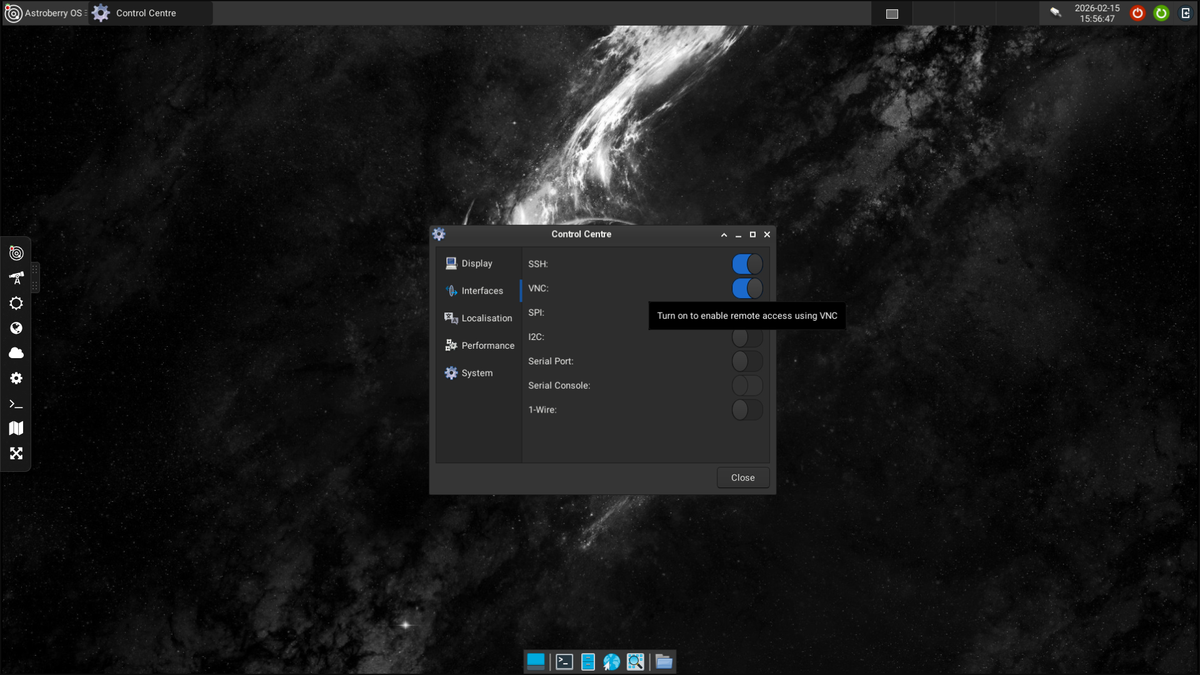
Some users prefer to access Astroberry OS using a VNC client installed on their computer or mobile device e.g. RealVNC. Others want to use a physical display over HDMI and prefer to boot to graphical mode rather than text console.
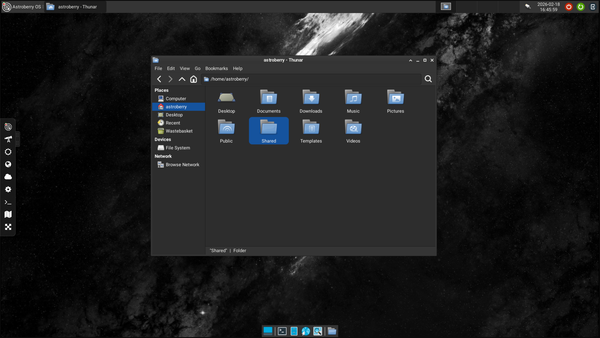
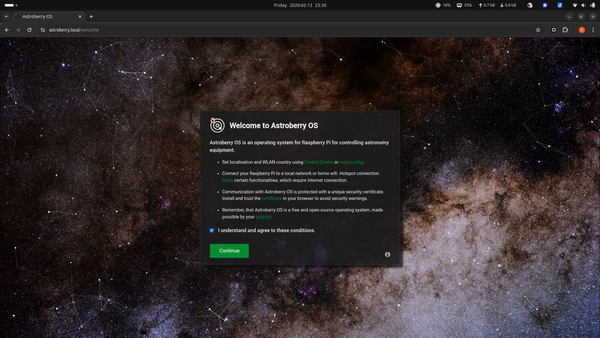
Astroberry OS does not provide a remote desktop service available to VNC clients. Instead, a remote desktop is accessible using a web browser and default web interface (aka Astroberry Manager) available on https://astroberry.local.
While accessing the same remote session available via a web browser requires some advanced changes to system configuration, it is absolutely fine for a user to install an independent remote desktop service using standard installation procedures.
The simplest way to install VNC service is using raspi-config or Control Centre application available in main menu Settings / Control Centre.
RealVNC, instead of updating alternatives, overwrites /usr/bin/vncserver file which links to /usr/bin/tigervncserver, responsible for the web-desktop. This breaks Astroberry's web-desktop service. To avoid this issue you need to (1) fix the conflict with RealVNC, (2) change default boot mode to graphical, (3) enable graphical login, (3) enable VNC.
1. Fix the conflict with RealVNC
sudo sed -i "s/=vncserver/=tigervncserver/g" /etc/systemd/system/vncserver.service
sudo systemctl daemon-reload
sudo systemctl restart vncserver.service
2. Change default boot mode to graphical
sudo systemctl set-default graphical.target
3. Enable graphical login
sudo systemctl enable lightdm.service
4. Enable VNC (RealVNC)
sudo raspi-config
The last command starts standard Raspberry Pi configuration tool. Go to Interface Options / VNC to enable VNC service. You can also do it using Control Centre in desktop environment available in Astroberry OS main menu / Settings / Control Centre.
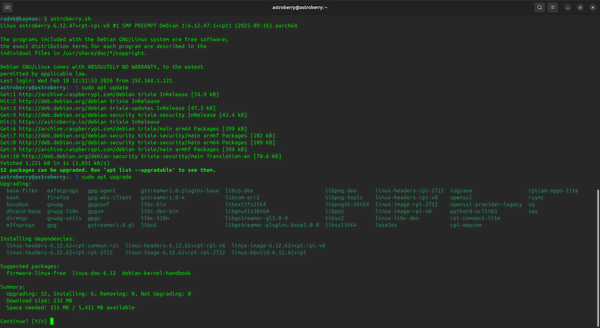
You need to run sudo apt update at least once after system installation to refresh software repositories before enabling VNC. If you are doing these just after the first boot, make sure you remember this step. Otherwise VNC activation will fail.
Summary
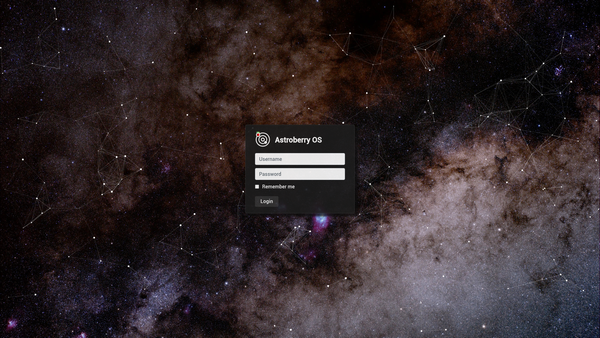
After running all of the commands, you need to reboot your system for changes to activate. After reboot you should expect a working web-desktop, a working independent VNC service accessible over a network with a VNC client, and your Astroberry OS should boot to graphical mode with a beautiful login screen on your physical display and VNC client screen (replicated).
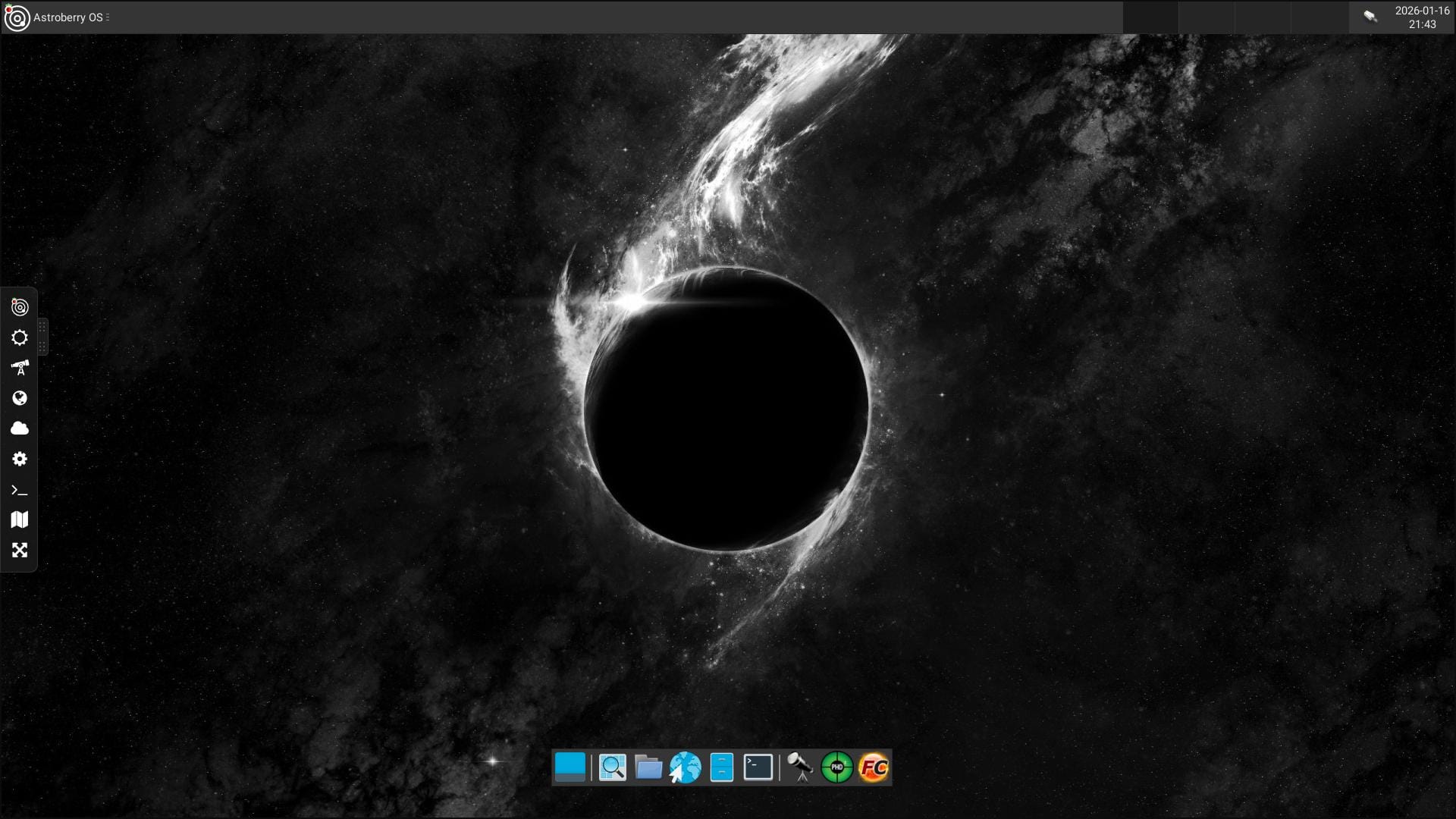
BTW if you liked original Astroberry OS wallpaper, you can find it along other Astroberry Artwork in a system directory /usr/share/astroberry-artwork/backgrounds