How to Update

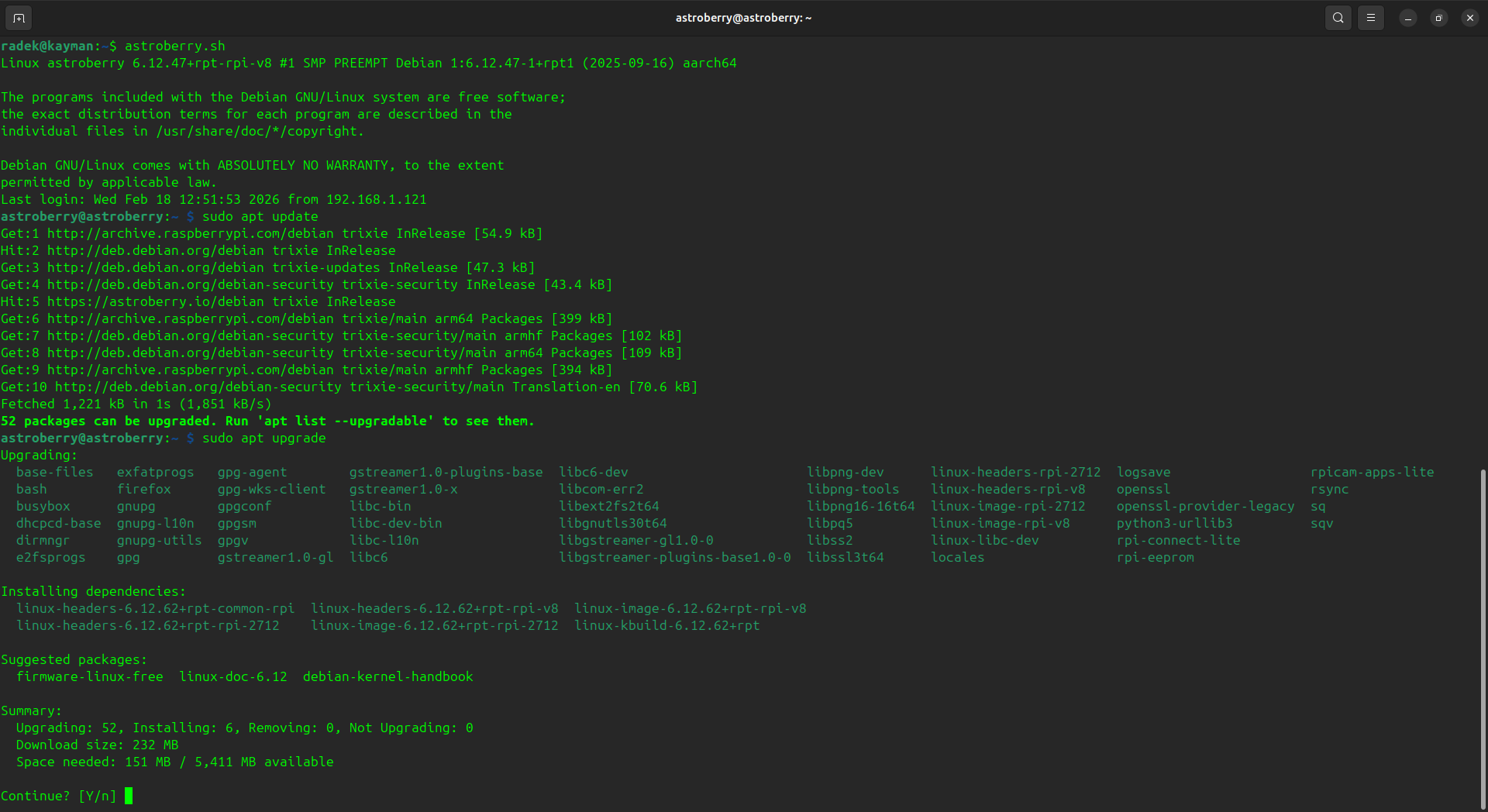
It always looks so scary when you try to update your system. This especially applies to Linux and the famous command line interface. You are probably wondering why it must be so difficult. But is it, really?
Command line interface aka CLI is a tool that lets you manage a system without fancy windows, tabs, forms and tick boxes. No overhead needed, just a keyboard and basic display, and if you manage your system remotely, additionally some kind of a network. That is why using CLI for managing remote systems or embedded systems is a perfect tool. I'm not trying to convince you to use CLI. I just want you to know, that a moment you understand how it works is the moment you fall in love.
Anyway, how to update Astroberry OS? The easiest way is... by using command line interface.
Package Management System
All Debian-based systems (and Astroberry OS is Debian-based system) use package management system, which comes with tool which take care of software management for you. apt and apt-get are common base tools used by other programs e.g. aptitude, synaptic and apt-watch.
The basic flow for updating a Debian-based linux operating system is as follows:
Update info about online repositories
sudo apt update
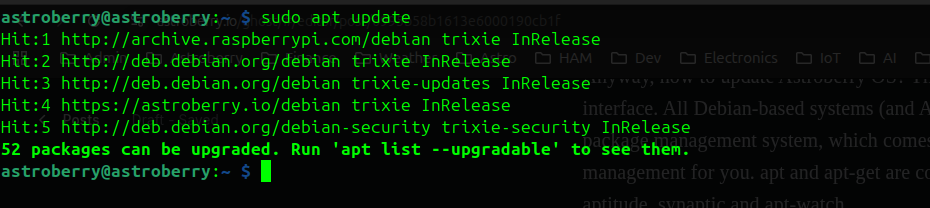
This step downloads up-to-date information about software packages available in online repositories. Additionally it compares versions of packages installed on your system and available in online repositories. This identifies packages that can be upgraded.
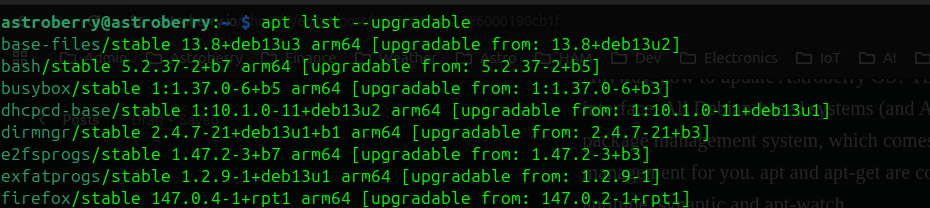
List upgradeable packages
apt list --upgradable
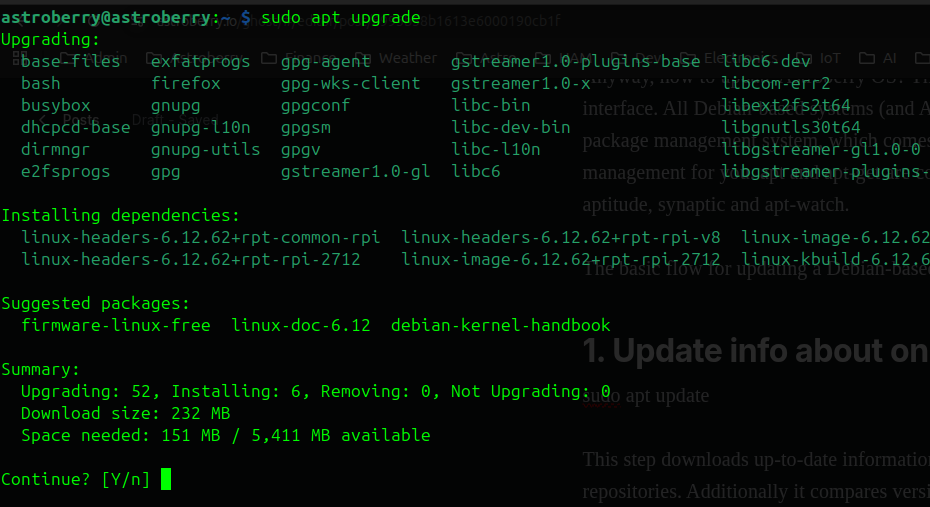
Upgrade packages
sudo apt upgrade
Other operations
There is tons of other actions you can run using apt or apt-get e.g. after removing some unnecessary packages with sudo apt remove you might run sudo apt autoremove to uninstall orphaned dependencies i.e. packaged installed for other packages, but not needed anymore after these packages are uninstalled. One of the most powerful features of command line interface is ability to combine commands. Upgrading your system in one step? Here you go:
sudo apt update && sudo apt upgrade
This will run in one go and ask for your confirmation at the end. And if you don't want to be asked any questions, just add -y at the end of the line and the system will assume that your answer is yes.
Python packaging system
99% of Astroberry OS software is delivered from Debian-based APT public repositories, including Astroberry APT repository. The outstanding 1% is managed by Python software management system. This is required by Astroberry Manager - a web interface for Astroberry OS.
Updating Python packages
Astroberry Manager is installed in Python virtual environment located in /opt/astroberry-manager This means that it runs independent from system-wide packages, in an isolated environment. This improves reliability, security and overall application management. Activate Python virtual environment BEFORE running any of the following commands. It is important to switch to root account first, and then run the activation command. Otherwise you will face issues with insufficient access rights.
sudo bash
. /opt/astroberry-manager/bin/activate
After activating Python virtual environment you will notice the change in command line prompt, which will now start with (astroberry-manager).

Python software management uses pip which is a Python software installation tool. You use it to list, install, uninstall, upgrade Python software eg. to list Python software installed in the virtual environment run pip list.
Checking installed version
You can check installed version of Astroberry Manager by running:
pip list | grep astroberry_manager
As the result you should see the output similar to this.

This confirms that Astroberry Manager is installed in version 1.0
Updating Astroberry Manager
Astroberry Manager is distributed as a Python package, available directly from official repository. You can either grab the source code and build the package on your own (beyond this guide) or you can download the latest available package from official releases.
What you really need is .whl file e.g. astroberry_manager-1.0-py3-none-any.whl First, download the file to your home directory:
cd /home/astroberry
wget https://github.com/astroberry-official/astroberry-manager/releases/download/v1.0/astroberry_manager-1.0-py3-none-any.whl
Second, make sure that Python virtual environment is activated as described above. If in doubt note the command line prompt, which should start with (astroberry-manager).
Third, uninstall old version
pip uninstall astroberry_manager
and install the new version.
pip install /home/astroberry/astroberry_manager-1.0-py3-none-any.whl
Finally, check the installed version again to confirm that installation is successful. If so, you can deactivate Python virtual environment by running deactivate and you are ready to restart Astroberry Manager
sudo systemctl restart astroberry-manager.service
and enjoy new version.
Conclusion
Software provided by Astroberry OS is managed with two distinct software management systems:
- Debian package management system
- Python package management system
All operating system components, including INDI libraries and drivers, KStars and other core applications are using Debian package management system, while Astroberry Manager uses Python package management system.
You can easily update packages from each of these systems with simple commands on command line interface. However you need to remember that these are two separate systems, which coexists on Astroberry OS and need to be taken care of separately. And if you don't want to play with system internals at all, you can just wait for another release of system image file and reflash your microSD with entire system up-to-date out of the box.