Remote desktop vs web interface

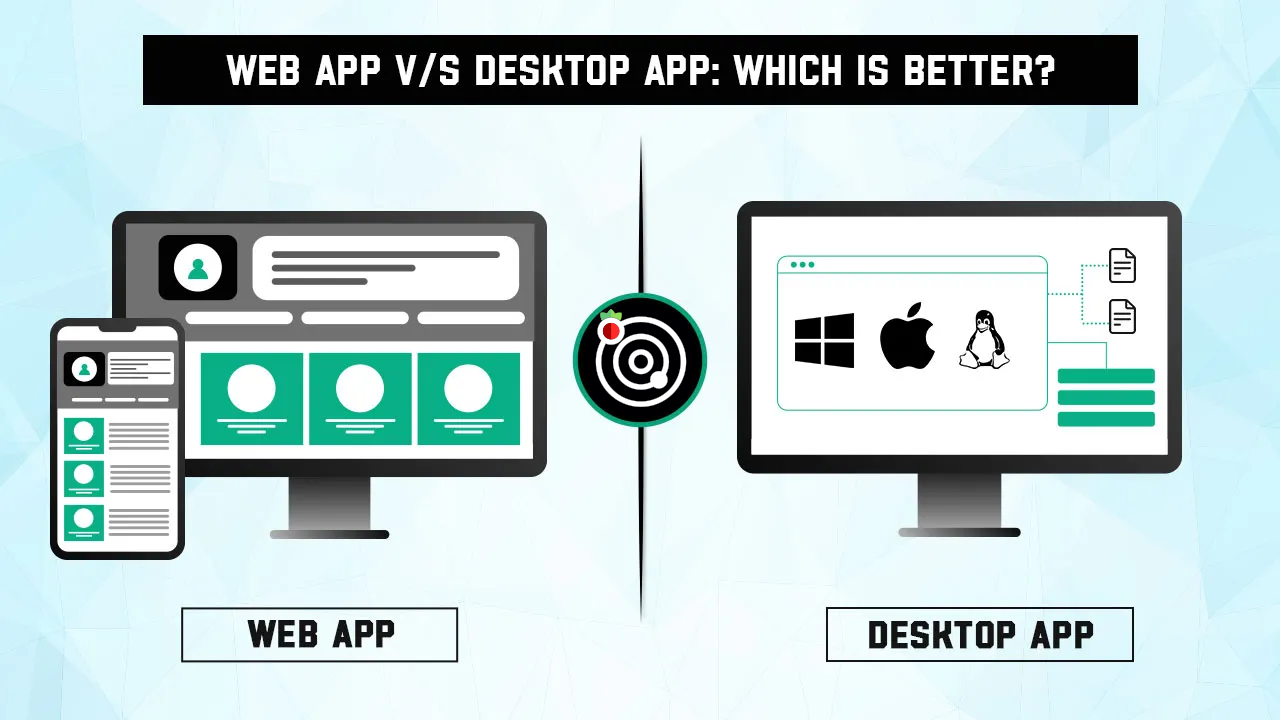
I have noticed that the web-based user interface - a central point for Astroberry OS - is a bit confusing for users. After flashing a SD card, connecting physical screen to your Raspberry and booting for the first time, all you can see is a black screen with a login prompt.
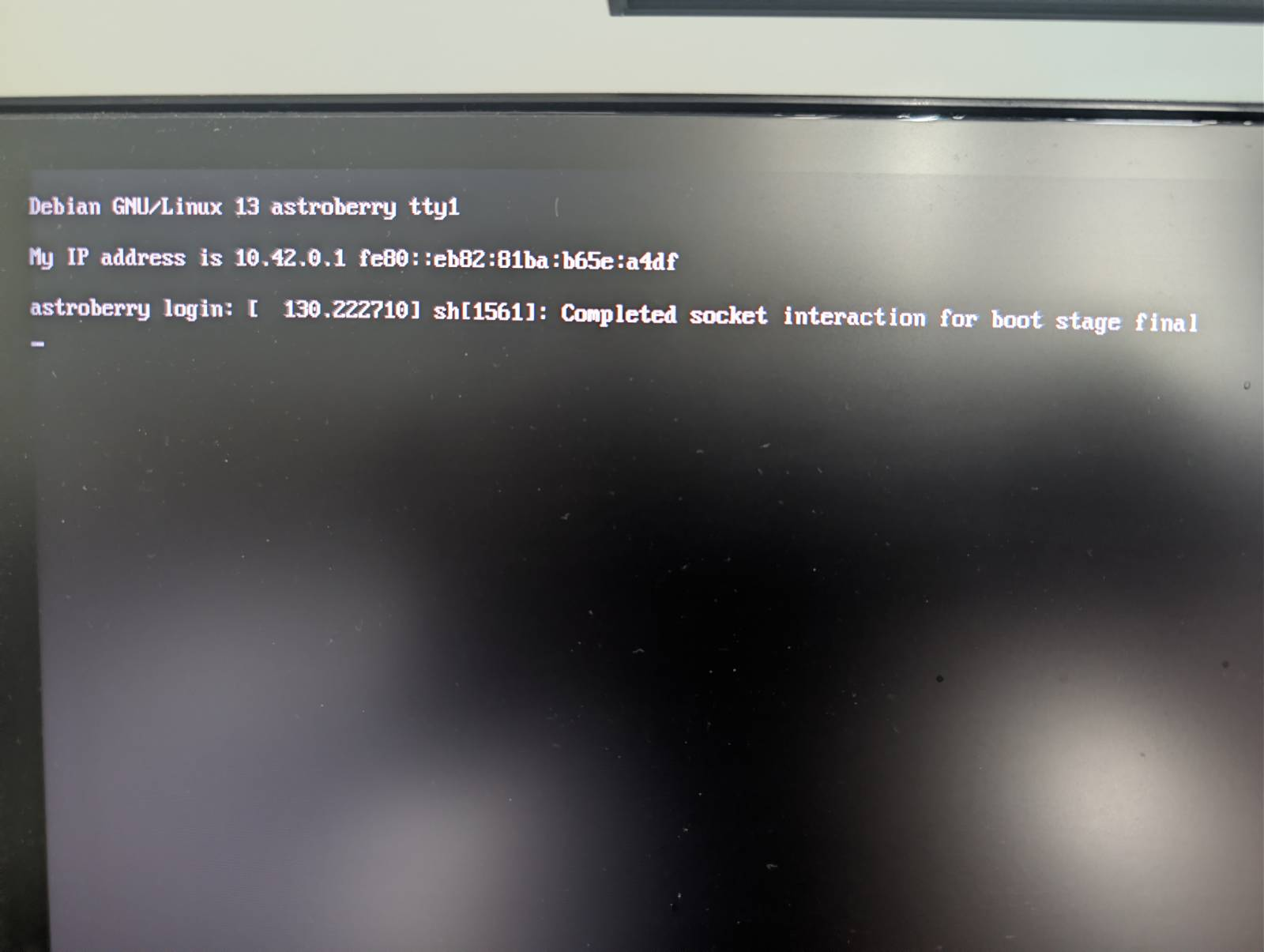
Some users say "It does not boot". Looks like common misunderstanding which requires some clarification 😉
Astroberry OS release 3.0 and 3.1 are headless systems, which boot to text mode by default and do not start graphical user interface at all. Instead it provides web interface available after boot at http://astroberry.local and https://astroberry.local
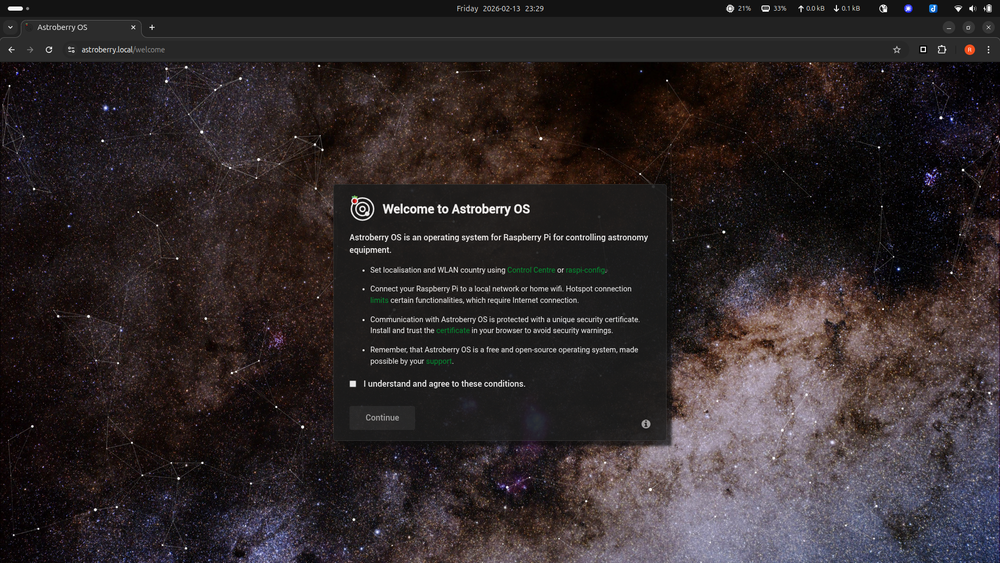
After the first boot, a user can connect to a wireless hotspot (name: astroberry) or wired network (on subsequent boots also to a wireless home network). Then launch a web browser on a PC connected to the same network, and point the browser to http://astroberry.local to access default user web interface for Astroberry OS. At the the very first boot a welcome page is opened before anything else.
Next you go to a login page and finally access main application screen - a Sky Chart and left-hand side sliding menu for controlling the system using web interface. So far so good. See step by step Quick Start Guide for details.
Desktop or not
Where it becomes confusing is full desktop experience. It does not show after boot, it is not accessible neither via VNC or any other remote desktop service.
Let me try to explain the system design. The entire system can work in 4 distinct modes:
- Console - text only mode, no graphical environment installed, only INDI server with devices - all as a network service only, controlled directly with an attached keyboard and/or custom scripts or web interface. This mode uses minimum resources and can be run on older devices. You need to run all graphical / heavy applications e.g. Kstars from an external PC and connect to Astroberry OS over network to access devices connected to Raspberry Pi. This mode requires stable network connection as all the logic is no your PC side while execution is on Rasperry Pi side. This is a pure client-server architecture. It is default for physical screen connected to Astroberry OS v3.x
- Physical desktop - graphical environment on a physical screen, independent from virtual screens. This mode is the probably the first-choice for many users. It is traditional mode where you connect screen, keyboard and mouse to a Raspberry Pi and use it as a regular desktop computer. Well, it is NOT default in Astroberry OS v3.x 😉
- Remote desktop - replicated physical screen or separate virtual screen available as a remote network service. This is quite popular use case, where no physical screen is connected to a Raspberry Pi, but a user connects to a remote screen with VNC, Raspberry Connect, RDP etc. A remote desktop can be replicating a physical screen (so you see the same on physical and remote display) or it could be separate from physical display (physical screen shows a desktop session different from remote desktop session and they run pararell). Well, it is NOT default in Astroberry OS v3.x either 😉
- Hybrid - no graphical user interface, text mode only, on a physical screen. Instead unified web-interface with integrated web-based remote desktop and web terminal. THIS IS DEFAULT.
You can ask "Why bother?". Well, there is no fits-all solution here. And hybrid mode looks like providing the best of all worlds. Some users are going to run everything directly on Raspberry Pi, including planetarium software (e.g. KStars), image acquisition software (e.g. CCDciel or AstroDMx) or even stacking software (e.g. Siril). Other would prefere to run everything on a favorable laptop, keeping Raspberry Pi footprint minimal. A web interface has something to offer to both of these user groups. And still you can reconfigure your Astroberry OS to work another way, up to your needs and preferences.
Astroberry OS v3.x is proposing to shift from thick clients and use a web browser instead. This means that all you need to access Astroberry OS is a PC with a web browser. No specialized software or PC to control the system. If you prefer to use a regular VNC, go for it - install and configure it for yourself, as you wish and like. As an example, you can easily enable default remote desktop provided by Raspberry Pi by running `sudo raspi-config` in a terminal or Control Centre in a graphical desktop session. See How to Connect to VNC to read more.
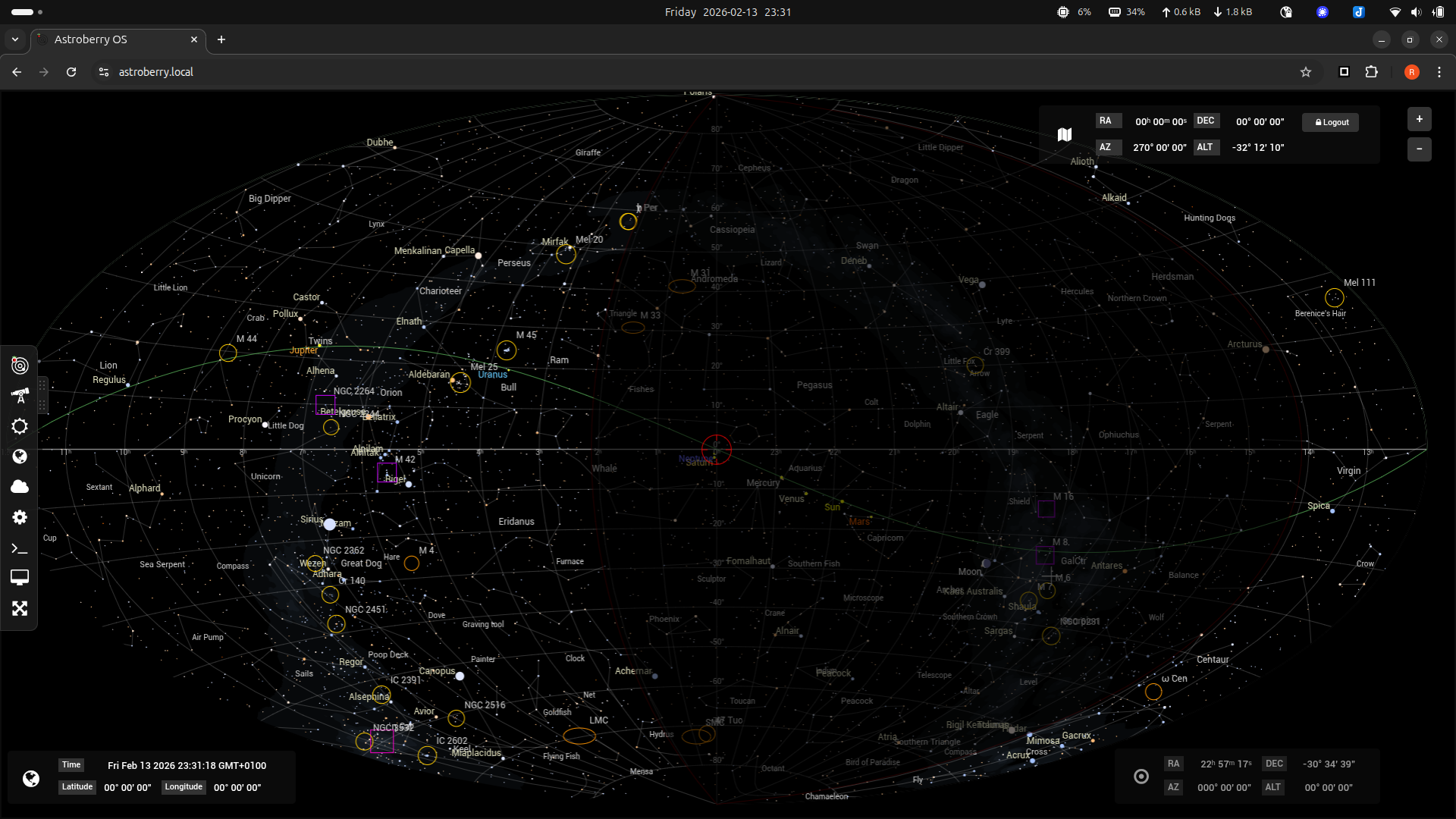
Finally the Sky Chart. Some of you ask, is it there to be pretty or does something useful. I'd say it can be used for planning astro sessions, searching objects, querying on-line databases (objects are first looked up in the local database, if not found, Simbad online database is queried, which contains over 19 million objects). But the real beauty of Sky Chart and web interface in v3.x pops up for users who need a quick web preview of overnight astro session i.e. position of a telescope, status of drivers, without accessing desktop interface. The Sky Chart pulls real time data from telescope so it displays a cross-hair, shows and follows telescope sky coordinates. The Equipment panel allows for managing your equipment profiles and displays a status of each connected device. As for now, the only telescope control, available from web interface, is setting telescope geographical location to the one defined in the Location panel.
Conclusion
Astroberry OS v3.x provides a web-based user interface by default. Using just a web browser you can access web-based terminal (no need to SSH), web-based desktop (no need to VNC) and web-based control interface for all astronomy equipment. The proposed approach does not limit your choices and you can still customize the system as you like. The key take away from this proposed approach is to free from specialized software and PC to control Astroberry OS and astronomy equipment. Launch a browser and shoot the stars!