How to copy Micro SD to NVMe SSD

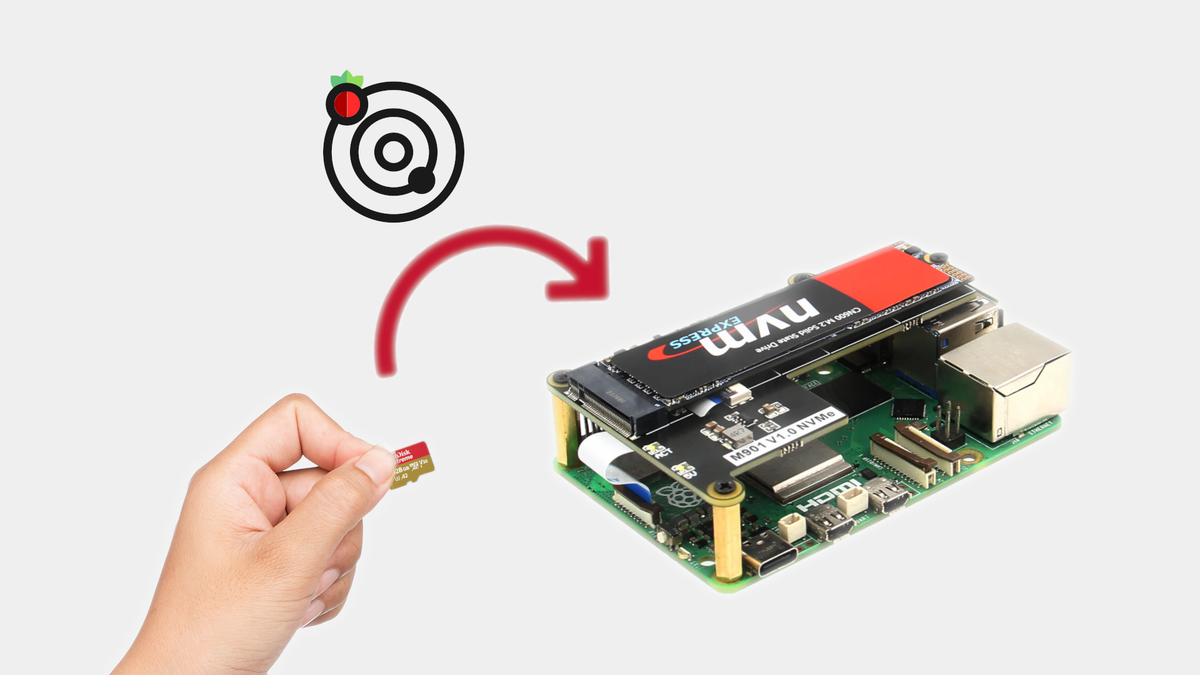
Astroberry OS for arm64 is provided as a system image file dedicated for microSD cards. Meanwhile, many users upgrade their systems with SSD/NVMe HATs which provide increase in performance and reliability. Most of them ask the question How to copy Astroberry OS from micro SD to external drive?
The operation is quite easy and can be done in just a few simple steps.
- Connect your NVMe SSD drive to a Raspberry Pi using a dedicated NVMe HAT or USB-to-NVMe adapter.
- Boot up your Raspberry Pi from your current SD card.
- Open Astroberry OS desktop and got to the main application menu at the top left and navigate to Accessories > SD Card Copier.
- In the Copy From Device dropdown, select your SD card (usually /dev/mmcblk0).
- In the Copy To Device dropdown, select your NVMe SSD (usually /dev/nvme0n1).
- Click Start
Once the copying process is complete, you need to configure your Raspberry Pi to boot from external drive instead of the SD card.
For Raspberry Pi 5
- Open the terminal and run
sudo raspi-config - Navigate to Advanced Options > Boot Order.
- Select NVMe/USB Boot and follow the prompts.
- Shut down the Pi, remove the microSD card, and power it back up.
For Raspberry Pi 4
The Pi 4 requires an updated bootloader to boot directly from USB/NVMe. You can update the bootloader using sudo raspi-config
Conclusion
Copying SD card to NVMe SSD drive is easy and takes just a few simple steps. It requires some extra caution when selecting a target drive but in general process is smooth and transparent. In case of any detailed questions, look up the official Raspberry Pi documentation.